> ## Documentation Index
> Fetch the complete documentation index at: https://docs.attio.com/llms.txt
> Use this file to discover all available pages before exploring further.
# Defining app settings
> How to define workspace-level settings for your app
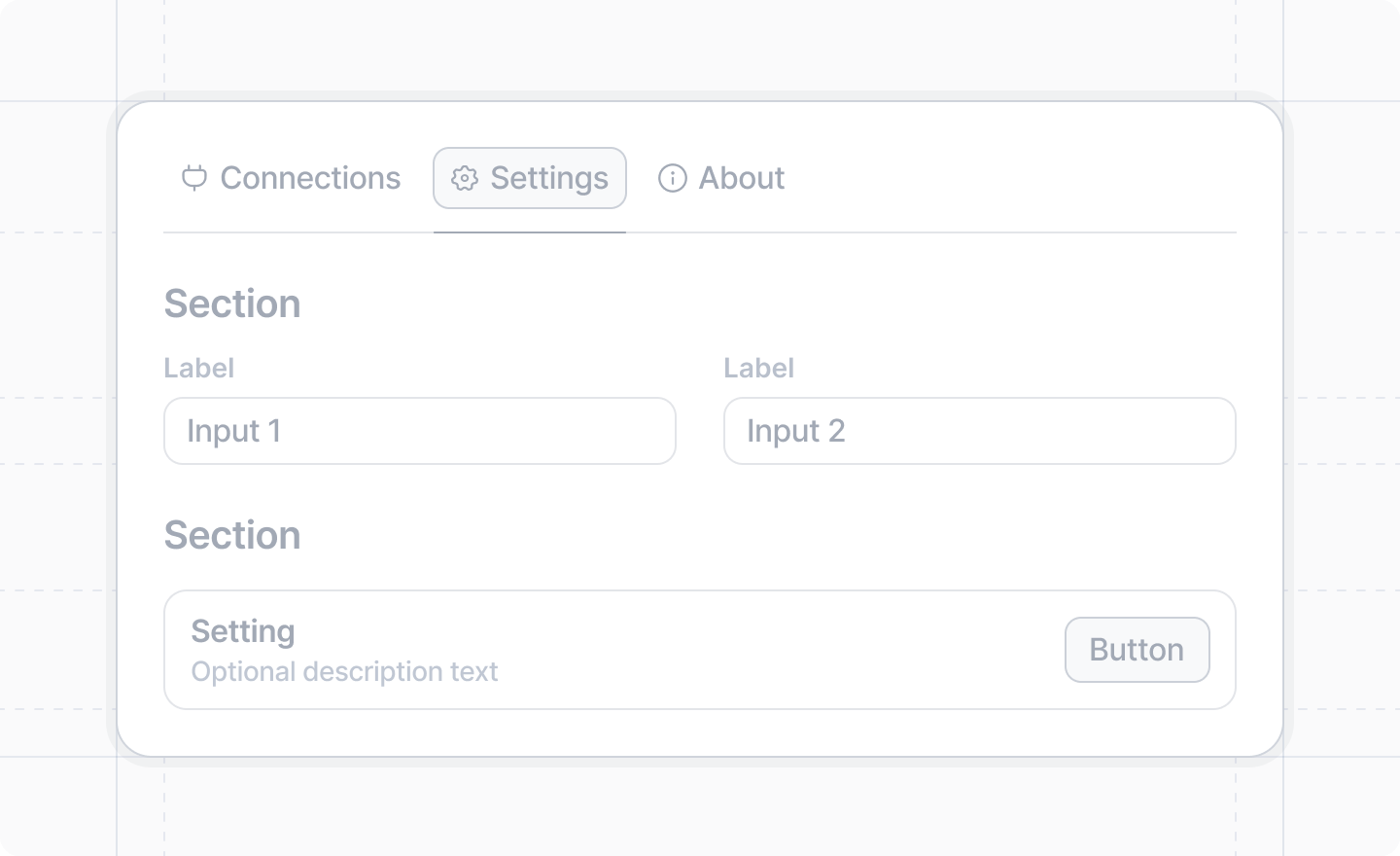
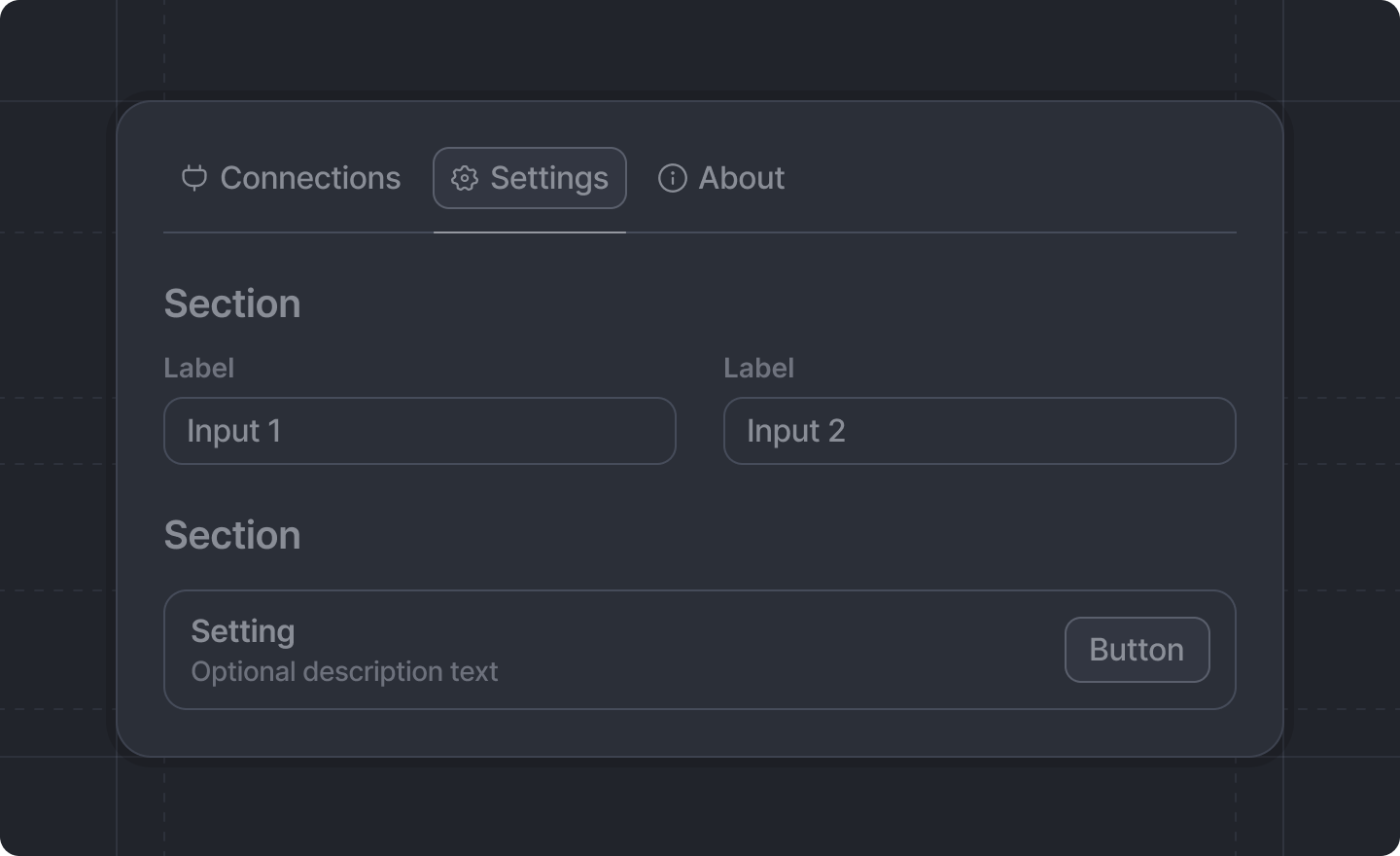
Apps may configure settings which let users customize the app at the workspace level.
Settings live in `src/app/settings/` and consist of a schema defined with [`Settings.defineWorkspaceSchema`](../settings/define-workspace-schema) and a page defined with [`Settings.defineWorkspacePage`](../settings/define-workspace-page), displayed with form components from [`Settings.useForm`](../settings/use-form).
Unlike regular forms in dialogs, workspace settings forms automatically save changes and don't require
a submit button or `onSubmit` handler. Each field saves individually:
* Text inputs and number inputs save `onBlur` (when the user leaves the field)
* Toggles, checkboxes, and comboboxes save `onChange` (immediately when changed)
Only workspace admins can edit workspace settings. However, all workspace members can view the
settings.
## Example: Basic workspace settings
First, define your settings schema as the default export of `src/app/settings/schema.ts`:
```ts src/app/settings/schema.ts theme={"system"}
import {Settings} from "attio"
export default Settings.defineWorkspaceSchema({
team_name: Settings.Schema.string(),
environment: Settings.Schema.string(),
auto_sync_enabled: Settings.Schema.boolean(),
sync_interval_minutes: Settings.Schema.number(),
})
```
Then, define your workspace settings page as the default export of `src/app/settings/page.tsx`:
```tsx src/app/settings/page.tsx theme={"system"}
import React from "react"
import {Settings} from "attio/client"
import schema from "./schema"
export default Settings.defineWorkspacePage(schema, () => {
const {Form, Section, TextInput, Toggle, NumberInput} = Settings.useForm(schema)
return (
)
})
```
The process to create workspace settings is:
1. Define a schema with [`Settings.defineWorkspaceSchema`](../settings/define-workspace-schema) at `src/app/settings/schema.ts`
2. Define a page with [`Settings.defineWorkspacePage`](../settings/define-workspace-page) at `src/app/settings/page.tsx`
3. Use [`Settings.useForm`](../settings/use-form) inside the page's render callback to get form components
4. Wrap your settings inputs in the `` and organize with `` components
## Validation
Unlike regular forms where validation is defined in the schema, workspace settings validation
is specified directly on the input components:
```tsx src/app/settings/page.tsx theme={"system"}
import React from "react"
import {Settings} from "attio/client"
import schema from "./schema"
export default Settings.defineWorkspacePage(schema, () => {
const {Form, Section, TextInput, NumberInput} = Settings.useForm(schema)
return (
)
})
```
## Available components
Workspace settings forms support the following components:
### Input components
* [``](../components/workspace-settings/text-input) - String input with validation
* [``](../components/workspace-settings/number-input) - Numeric input with min/max
* [``](../components/workspace-settings/toggle) - Boolean toggle switch
* [``](../components/workspace-settings/checkbox) - Boolean checkbox
* [``](../components/workspace-settings/combobox) - Dropdown selection
* [``](../components/workspace-settings/attio-user-combobox) - Select workspace users
* [``](../components/workspace-settings/rich-text-input) - Rich text input
### Layout components
* [``](../components/workspace-settings/section) - Group settings into sections
* [``](../components/workspace-settings/input-group) - Group inputs horizontally
### Utility components
* [``](../components/workspace-settings/button) - Action buttons for additional functionality
* [``](../components/workspace-settings/with-state) - Access form state for conditional rendering
## Accessing settings in your app
Once your workspace settings are configured, you can access them in different ways. Every setting value is `null` until it has been set.
### With real-time updates
In React components, use the [`Settings.useSettings`](../settings/use-settings) hook to get settings that automatically update when changed:
```tsx src/app/extensions/team-widget/team-widget-content.tsx theme={"system"}
import React from "react"
import {Settings, Widget} from "attio/client"
import schema from "../../settings/schema"
export const TeamWidgetContent = () => {
const settings = Settings.useSettings(schema)
// Access your settings with full type safety.
// Automatically re-renders when settings change.
return (
Team: {settings.team_name}
)
}
```
### Programmatically
Use [`Settings.getSettings`](../settings/get-settings) and [`Settings.setSettings`](../settings/set-settings) to read and write settings. They're available from both `attio/client` (for use in extensions, dialogs, etc.) and `attio/server` (for use in server functions, webhook handlers, and event handlers):
**In client code:**
```tsx src/app/extensions/sync-record/extension.tsx theme={"system"}
import {Extensions, Settings} from "attio/client"
import schema from "../../settings/schema"
export default Extensions.defineExtension({
type: "record-action",
id: "sync-record",
label: "Sync Record",
icon: "ArrowsRefresh",
onTrigger: async ({recordId}) => {
// Get all settings
const settings = await Settings.getSettings(schema)
// Or get a single setting
const syncEnabled = await Settings.getSettings(schema, "auto_sync_enabled")
// Update a setting
await Settings.setSettings(schema, "auto_sync_enabled", true)
},
})
```
**In server functions:**
```ts src/sync-data.server.ts theme={"system"}
import {Settings} from "attio/server"
import schema from "./app/settings/schema"
export default async function syncData() {
// Get all settings
const settings = await Settings.getSettings(schema)
// Or get a single setting
const syncEnabled = await Settings.getSettings(schema, "auto_sync_enabled")
// Update a setting
await Settings.setSettings(schema, "auto_sync_enabled", true)
return {success: true}
}
```
## Related documentation
* [Workspace settings overview](../settings/overview)
* [`Settings.defineWorkspaceSchema()`](../settings/define-workspace-schema) - Define the structure and types of your settings
* [`Settings.defineWorkspacePage()`](../settings/define-workspace-page) - Define the settings page
* [`Settings.useForm()`](../settings/use-form) - Build the settings form
* [`Settings.useSettings()`](../settings/use-settings) - Hook for accessing settings in React components
* [`Settings.getSettings()`](../settings/get-settings) - Get settings in client or server code
* [`Settings.setSettings()`](../settings/set-settings) - Set a setting in client or server code
* [Settings Components](../components/workspace-settings/form)
 Apps may configure settings which let users customize the app at the workspace level.
Settings live in `src/app/settings/` and consist of a schema defined with [`Settings.defineWorkspaceSchema`](../settings/define-workspace-schema) and a page defined with [`Settings.defineWorkspacePage`](../settings/define-workspace-page), displayed with form components from [`Settings.useForm`](../settings/use-form).
Unlike regular forms in dialogs, workspace settings forms automatically save changes and don't require
a submit button or `onSubmit` handler. Each field saves individually:
* Text inputs and number inputs save `onBlur` (when the user leaves the field)
* Toggles, checkboxes, and comboboxes save `onChange` (immediately when changed)
Apps may configure settings which let users customize the app at the workspace level.
Settings live in `src/app/settings/` and consist of a schema defined with [`Settings.defineWorkspaceSchema`](../settings/define-workspace-schema) and a page defined with [`Settings.defineWorkspacePage`](../settings/define-workspace-page), displayed with form components from [`Settings.useForm`](../settings/use-form).
Unlike regular forms in dialogs, workspace settings forms automatically save changes and don't require
a submit button or `onSubmit` handler. Each field saves individually:
* Text inputs and number inputs save `onBlur` (when the user leaves the field)
* Toggles, checkboxes, and comboboxes save `onChange` (immediately when changed)