> ## Documentation Index
> Fetch the complete documentation index at: https://docs.attio.com/llms.txt
> Use this file to discover all available pages before exploring further.
# Workspace settings
> Add configurable workspace-level settings to your app
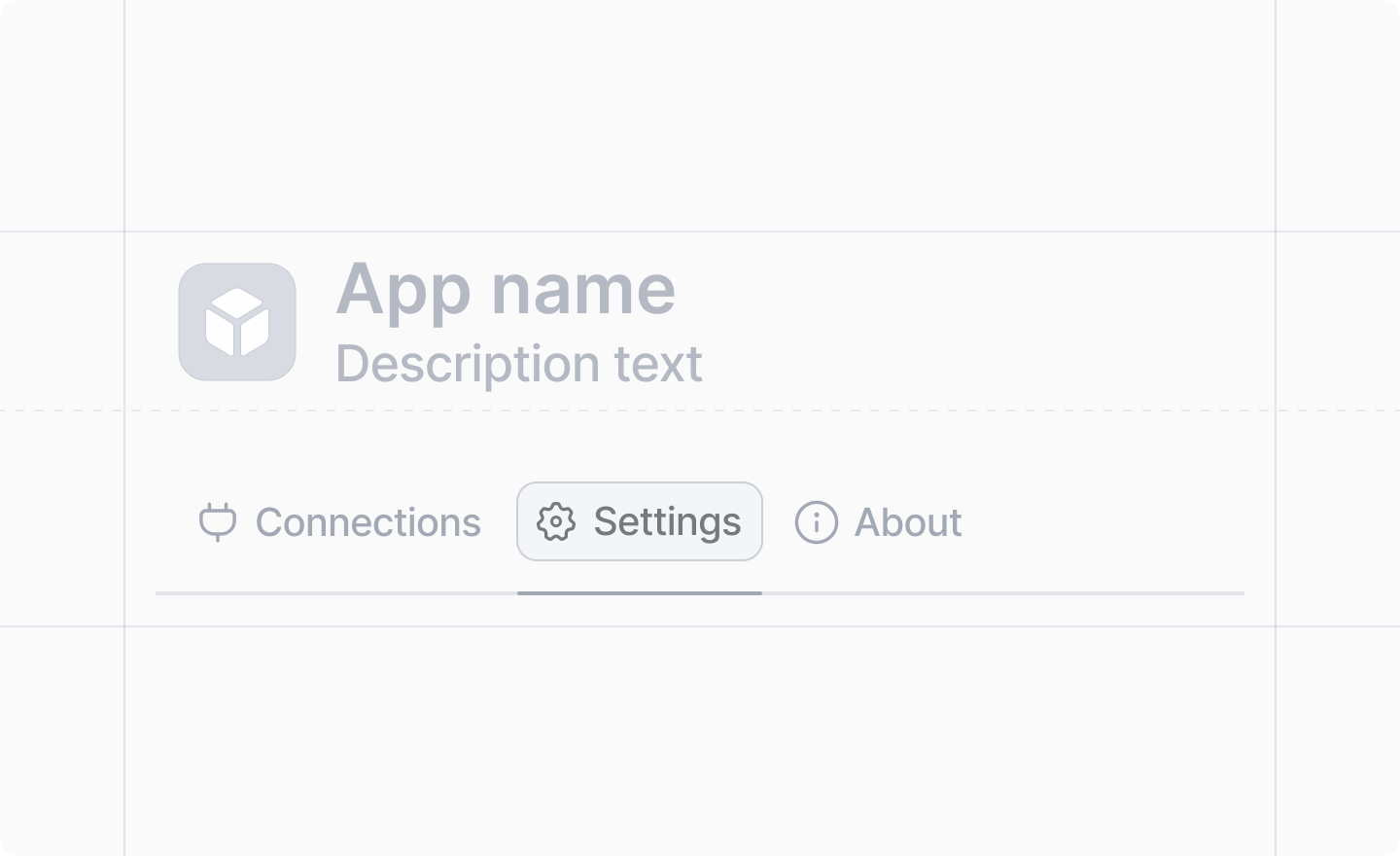
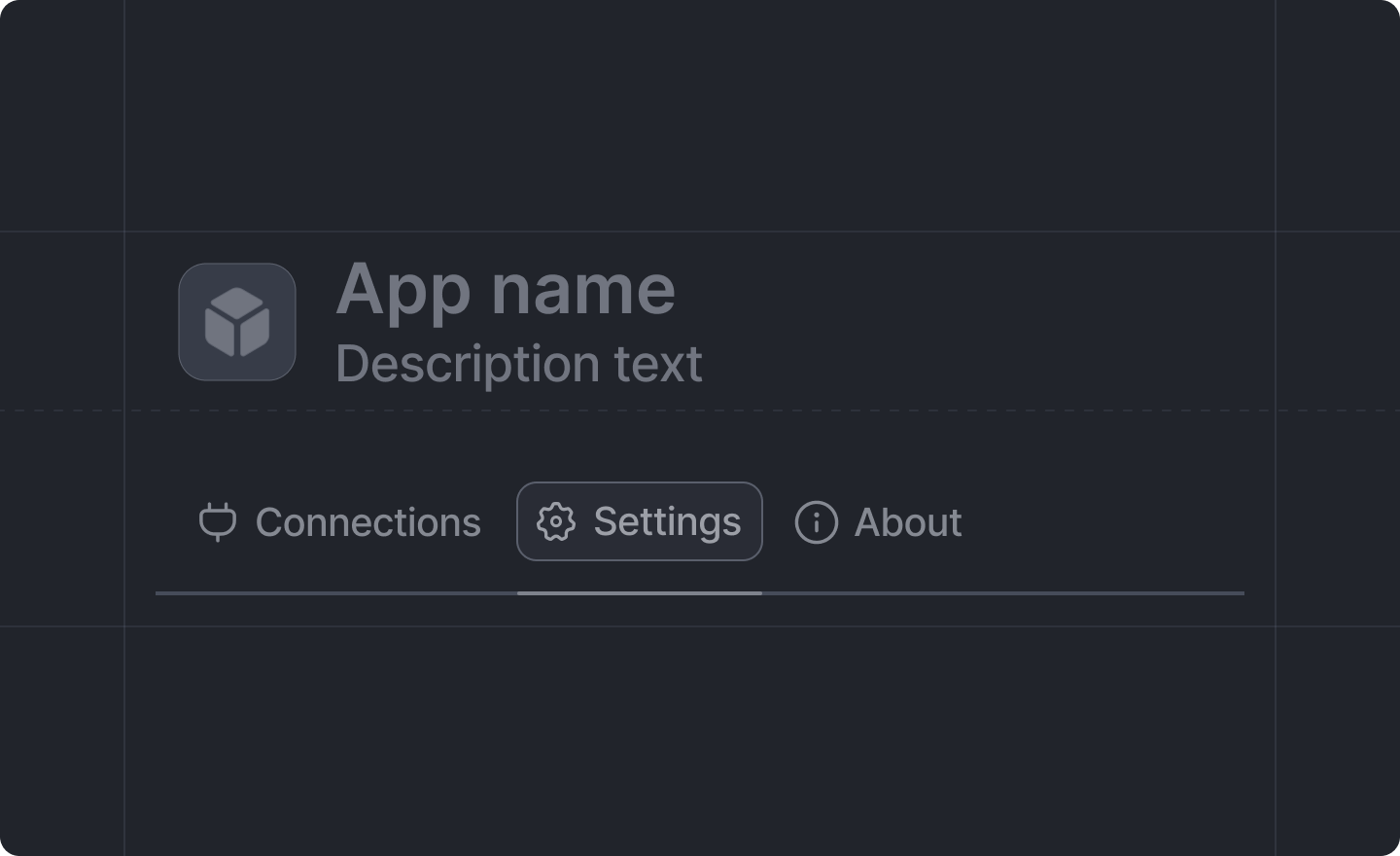 Workspace settings allow users to configure your app at the workspace level. Settings are displayed in the app's details page and are automatically saved when users make changes.
Only workspace admins can edit workspace settings. However, all workspace members can view the
settings.
Settings live in `src/app/settings/` and consist of two files:
* `schema.ts` default-exports a [`Settings.defineWorkspaceSchema`](./define-workspace-schema) call declaring the setting fields and their types.
* `page.tsx` default-exports a [`Settings.defineWorkspacePage`](./define-workspace-page) call rendering the settings form.
## Example
First, define your settings schema:
```ts src/app/settings/schema.ts theme={"system"}
import {Settings} from "attio"
export default Settings.defineWorkspaceSchema({
team_name: Settings.Schema.string(),
auto_sync_enabled: Settings.Schema.boolean(),
sync_interval_minutes: Settings.Schema.number(),
})
```
Then define the settings page. Call [`Settings.useForm`](./use-form) with the schema to get form components pre-typed against it:
```tsx src/app/settings/page.tsx theme={"system"}
import React from "react"
import {Settings} from "attio/client"
import schema from "./schema"
export default Settings.defineWorkspacePage(schema, () => {
const {Form, Section, TextInput, Toggle, NumberInput} = Settings.useForm(schema)
return (
)
})
```
## Reading and writing settings
Every setting value is `null` until it has been set. Beyond the settings page itself, your app can access settings anywhere:
* [`Settings.useSettings(schema)`](./use-settings) - read settings reactively in React components.
* [`Settings.getSettings(schema, key?)`](./get-settings) - read settings from client or server code.
* [`Settings.setSettings(schema, key, value)`](./set-settings) - write a setting from client or server code.
## Type safety
The schema provides type safety between your settings definitions and form components. For example:
* `TextInput`, `AttioUserCombobox`, and `Combobox` can only reference fields defined as `Settings.Schema.string()`
* `NumberInput` can only reference fields defined as `Settings.Schema.number()`
* `Toggle` and `Checkbox` can only reference fields defined as `Settings.Schema.boolean()`
TypeScript will show an error if you try to use a component with a mismatched field type.
## Migrating from the legacy settings API
Apps created before the folder-based layout define settings with an `app.settings.ts` schema and a `Page` registered in `app.ts`. That API is deprecated. Settings cannot be defined both ways at once (doing so is a build error), so migrate settings in one step, either with [`attio migrate folder-structure`](../guides/folder-structure-migration) or by hand.
## Related
* [Adding workspace settings guide](../guides/adding-workspace-settings) - step-by-step guide
* [Settings form components](../components/workspace-settings/form) - available form components
Workspace settings allow users to configure your app at the workspace level. Settings are displayed in the app's details page and are automatically saved when users make changes.
Only workspace admins can edit workspace settings. However, all workspace members can view the
settings.
Settings live in `src/app/settings/` and consist of two files:
* `schema.ts` default-exports a [`Settings.defineWorkspaceSchema`](./define-workspace-schema) call declaring the setting fields and their types.
* `page.tsx` default-exports a [`Settings.defineWorkspacePage`](./define-workspace-page) call rendering the settings form.
## Example
First, define your settings schema:
```ts src/app/settings/schema.ts theme={"system"}
import {Settings} from "attio"
export default Settings.defineWorkspaceSchema({
team_name: Settings.Schema.string(),
auto_sync_enabled: Settings.Schema.boolean(),
sync_interval_minutes: Settings.Schema.number(),
})
```
Then define the settings page. Call [`Settings.useForm`](./use-form) with the schema to get form components pre-typed against it:
```tsx src/app/settings/page.tsx theme={"system"}
import React from "react"
import {Settings} from "attio/client"
import schema from "./schema"
export default Settings.defineWorkspacePage(schema, () => {
const {Form, Section, TextInput, Toggle, NumberInput} = Settings.useForm(schema)
return (
)
})
```
## Reading and writing settings
Every setting value is `null` until it has been set. Beyond the settings page itself, your app can access settings anywhere:
* [`Settings.useSettings(schema)`](./use-settings) - read settings reactively in React components.
* [`Settings.getSettings(schema, key?)`](./get-settings) - read settings from client or server code.
* [`Settings.setSettings(schema, key, value)`](./set-settings) - write a setting from client or server code.
## Type safety
The schema provides type safety between your settings definitions and form components. For example:
* `TextInput`, `AttioUserCombobox`, and `Combobox` can only reference fields defined as `Settings.Schema.string()`
* `NumberInput` can only reference fields defined as `Settings.Schema.number()`
* `Toggle` and `Checkbox` can only reference fields defined as `Settings.Schema.boolean()`
TypeScript will show an error if you try to use a component with a mismatched field type.
## Migrating from the legacy settings API
Apps created before the folder-based layout define settings with an `app.settings.ts` schema and a `Page` registered in `app.ts`. That API is deprecated. Settings cannot be defined both ways at once (doing so is a build error), so migrate settings in one step, either with [`attio migrate folder-structure`](../guides/folder-structure-migration) or by hand.
## Related
* [Adding workspace settings guide](../guides/adding-workspace-settings) - step-by-step guide
* [Settings form components](../components/workspace-settings/form) - available form components